Record and run tests
Taiko comes with a recorder that’s a REPL for writing test scripts. Taiko’s recorder generates clean, maintainable JavaScript code.
The following sections explain how to launch the recorder, automate a browser and generate test scripts.
Launching
Install the latest version of version of Node.js and launch the Taiko REPL in your favorite terminal application using
npx taiko
This launches the Taiko REPL prompt.
Version: 1.x.x (Chromium: XX.x.x)
Type .api for help and .exit to quit
>
You start exploring and using Taiko’s API.
Taiko’s REPL is a specialised wrapper
over node REPL for handling
Taiko’s API. You can also Taiko’s REPL to run JavaScript code or use any Node.js libraries.
Exploring
Taiko REPL command .api lists all available API in
the following format (This is a shortened output)
> .api

Browser actions
    openBrowser, closeBrowser
    ...

Page actions
    goto, reload, goBack
    ...

...
For more info Taiko’s API like parameters and example usage you can run .api <api>
> .api click
Fetches an element with the given selector, scrolls it into view if needed,
and then clicks in the center of the element...

Parameters:
...

Returns: Promise

Example:
  await click('Get Started')
  ...
This API reference is also available online.
Running commands
To start automating the browser you can type in Taiko’s API. For example to launch a browser instance
> openBrowser()
This launches an instance of Chromium that is bundled with Taiko.
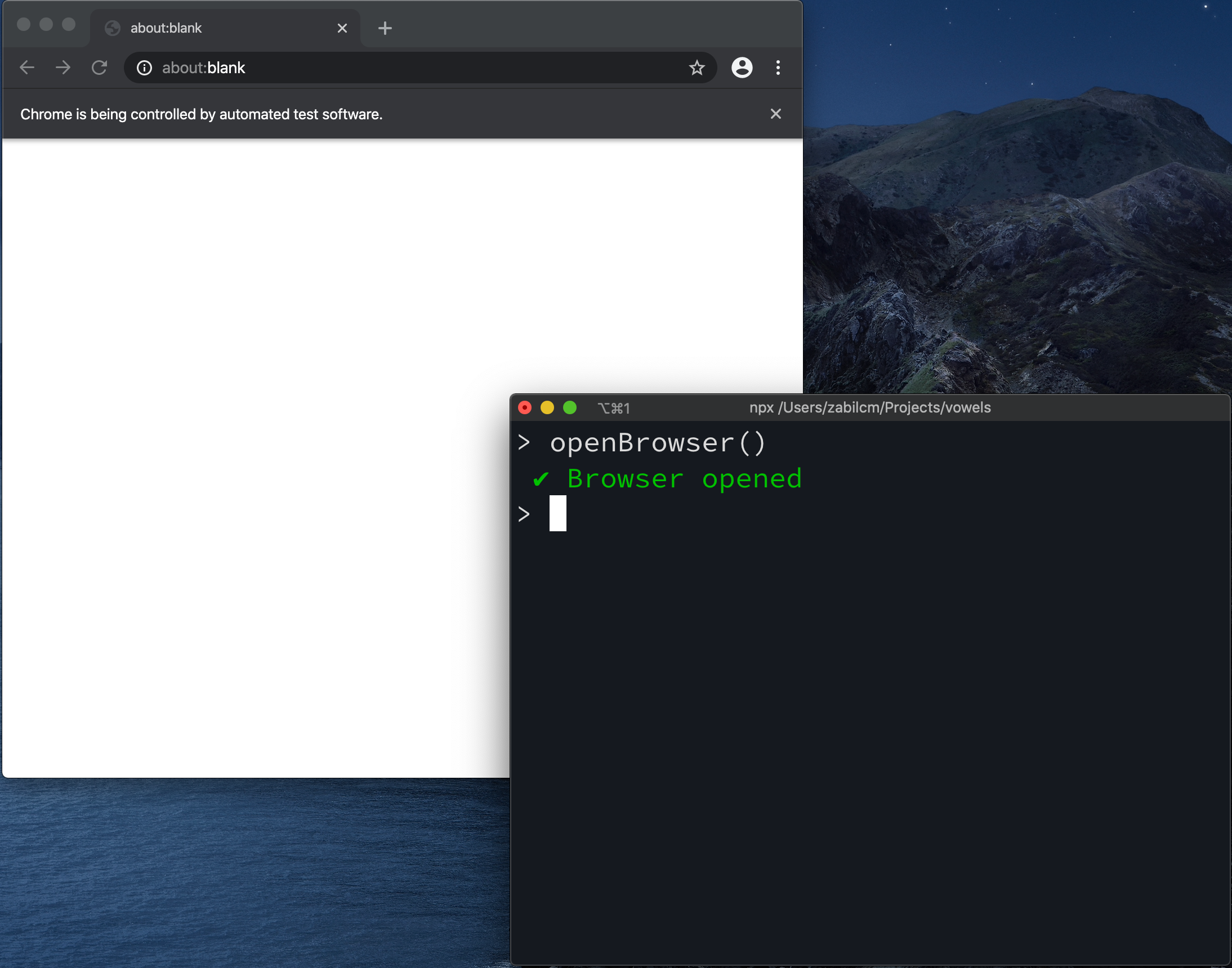
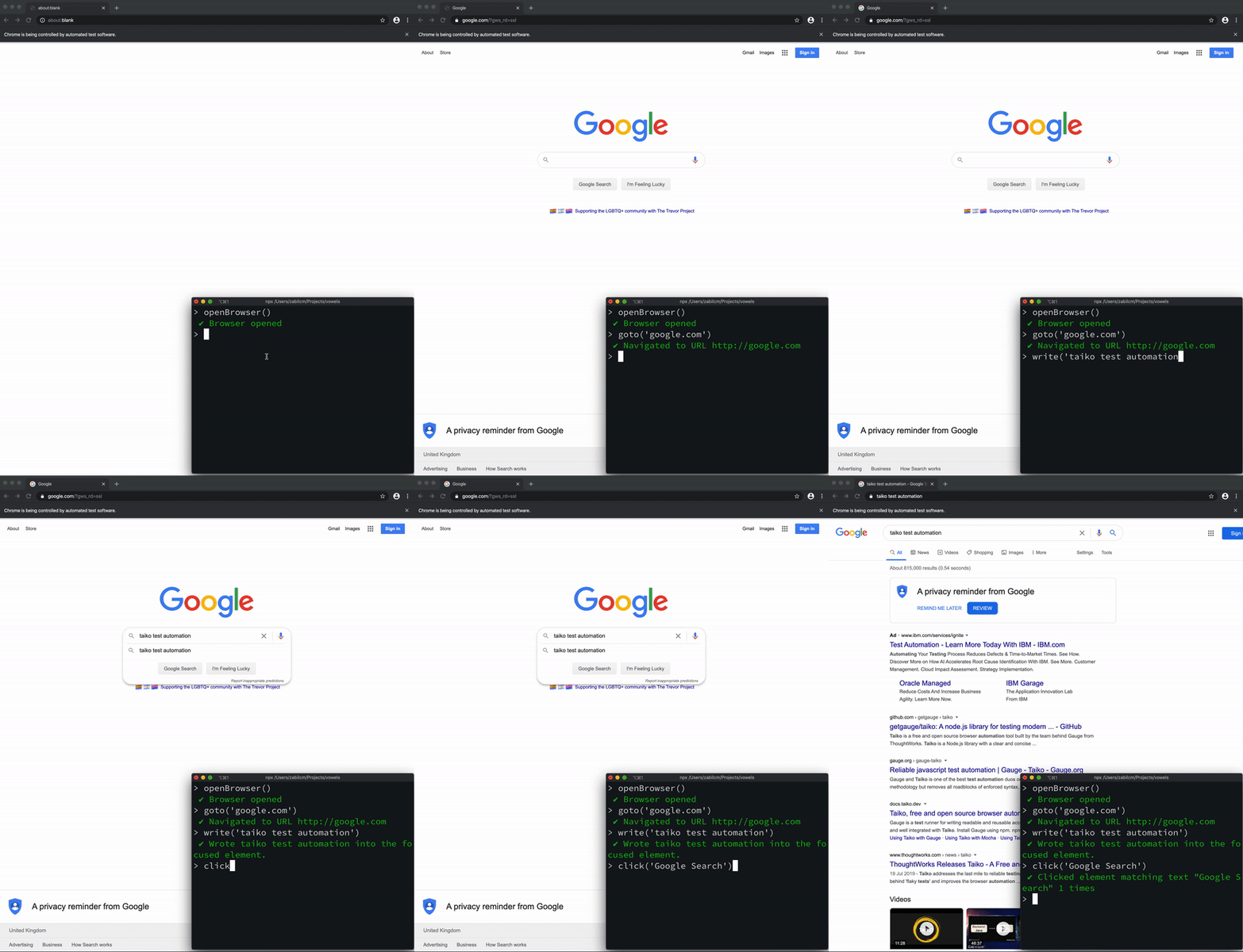
To automate this browser instance, you can use other commands from Taiko’s API. Here’s an example automating the browser to search Google
> goto("google.com")
> click("I agree")
> write("taiko test automation")
> click("Google Search")
These commands automate the browser to
gotoGoogle’s home page,clickon the “I agree” button (to consent to the use of cookies).writethe text “taiko test automation” and thenclickon the “Google Search” button.
You can see the browser performing these actions as you type and press enter for each command. (The recording was made before Google added the cookie consent.)
Generate code
Taiko’s REPL keeps a history of all successful commands. Once you finish an execution flow,
generate a test script using the special command .code
> .code
This command generates JavaScript code.
const { openBrowser, goto, write, click } = require('taiko');
(async () => {
  try {
    await openBrowser();
    await goto("google.com");
    await click("I agree")
    await write("taiko test automation");
    await click("Google Search");
  } catch (error) {
      console.error(error);
  } finally {
    closeBrowser();
  }
})();
Copy/Modify this code or save it directly to a file using
> .code googlesearch.js
Stopping
Stop and exit a recording session using
> .exit
Please note that you will lose all previous sessions recording history each
time you launch Taiko’s REPL.
Playback
You can re-run the test scripts saved from a session using the taiko command
npx taiko googlesearch.js
By default this will run the script in headless mode and you will not see a browser instance. However, if you would like to see the browser you can run
npx taiko googlesearch.js --observe
The --observe command adds a delay of three seconds between each actions and highlights
Taiko’s API actions on the page under test.
Resume
You can resume a session by using the repl API in your test script
and using the --load options while launching the Taiko REPL
For example
const { openBrowser, goto, write, click } = require('taiko');
const { repl } = require('taiko/recorder');
(async () => {
  try {
    await openBrowser();
    await goto("google.com");
    await click("I agree"); // remove this line if you run headless, because the cookie consent will not appear
    await write("taiko test automation");
    await click("Google Search");
    // Launchs the REPL after executing
    // the commands above
    await repl();
  } catch (error) {
      console.error(error);
  } finally {
    closeBrowser();
  }
})();
npx taiko --load googlesearch.js
Load plugins
If you want to use Taiko plugins in the REPL. You can use --plugin <plugin>
option, for example to use Taiko diagnostics
plugin
npx taiko --plugin taiko-diagnostics
> openBrowser();
> diagnostics.startTracing();
> goto('google.com');
> diagnostics.endTracing();
Manage browsers
You can use the environment variable TAIKO_BROWSER_PATH to launch Taiko’s recorder on any browser
(other than chromium version bundled with Taiko). Please follow your Operating System’s instruction on
setting environment variables. For example in bash or zsh you can try
TAIKO_BROWSER_PATH=/complete/path/to/browser/executable/file npx taiko
Note, the path should be to the browser executable file and not just the browser executable’s folder. You can point this environment variable to chromium based browsers like Chrome, Microsoft Edge, Opera etc. and FireFox
Emulation
Taiko also has an options for emulating
- Devices
- Networks
To emulate devices (using the browser’s viewport) you can use the --emulate-device option as follows
npx taiko --emulate-device 'iPhone X'
You can refer devices.js for the full list of devices.
To emulate network you can use the --emulate-network option for example
npx taiko --emulate-network 'Regular2G`
The available options are GPRS, Regular2G, Good2G, Regular3G, Good3G, Regular4G, DSL,
WiFi, Offline